


This guide covers everything about Bettermode Events for Zoom: connecting your Zoom account, linking your Zoom sessions to community events, what your members see when they RSVP, and how to remove the integration and what happens to your data when you do.
You'll need:
Admin access to Bettermode, on the Growth or Premium plan.
A Zoom account owner or admin to approve the connection. Bettermode Events for Zoom is an admin-managed Zoom app, which is what lets it register members for sessions hosted by anyone on your Zoom account.
A paid Zoom plan that supports registration. Meetings need Pro or higher. Webinars need a Zoom Webinars license.
In your Bettermode Administration view, go to App store → Apps & Integrations.
Click Bettermode Events for Zoom, then click Install. Contact the Bettermode team if you don't see the app.
Open the app's Settings tab and click Connect Zoom. You'll be redirected to Zoom.
Sign in as a Zoom account owner or admin, review the requested permissions, and click Allow.
You're redirected back to the settings page, which now shows the connected Zoom account.
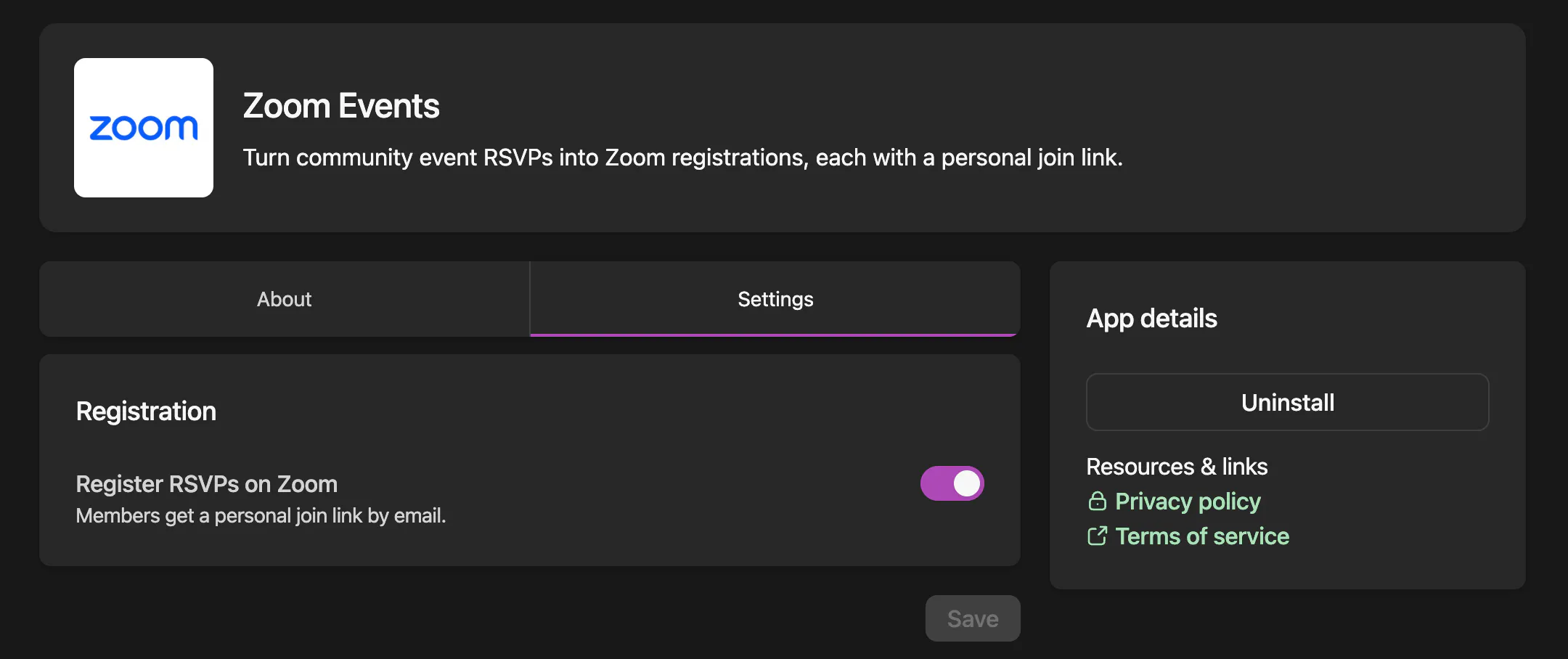
Check that Register RSVPs on Zoom is switched on. It's on by default. If you change it, click Save.
Bettermode Events for Zoom works with the sessions you already create in Zoom, so your branding, registration questions, reminder emails, panelists, and polls stay exactly where they are.
In Zoom, schedule your meeting or webinar with Registration: Required ticked. It's off unless you tick it, and without it there is nothing for members to be registered against.
Copy the session's join link.
In Bettermode, create your event and paste the Zoom link as the event's location. Publish the event.
When the event is published, Bettermode Events for Zoom checks that the session belongs to your connected Zoom account and that it requires registration, then links the two. Events without a Zoom link are left alone.
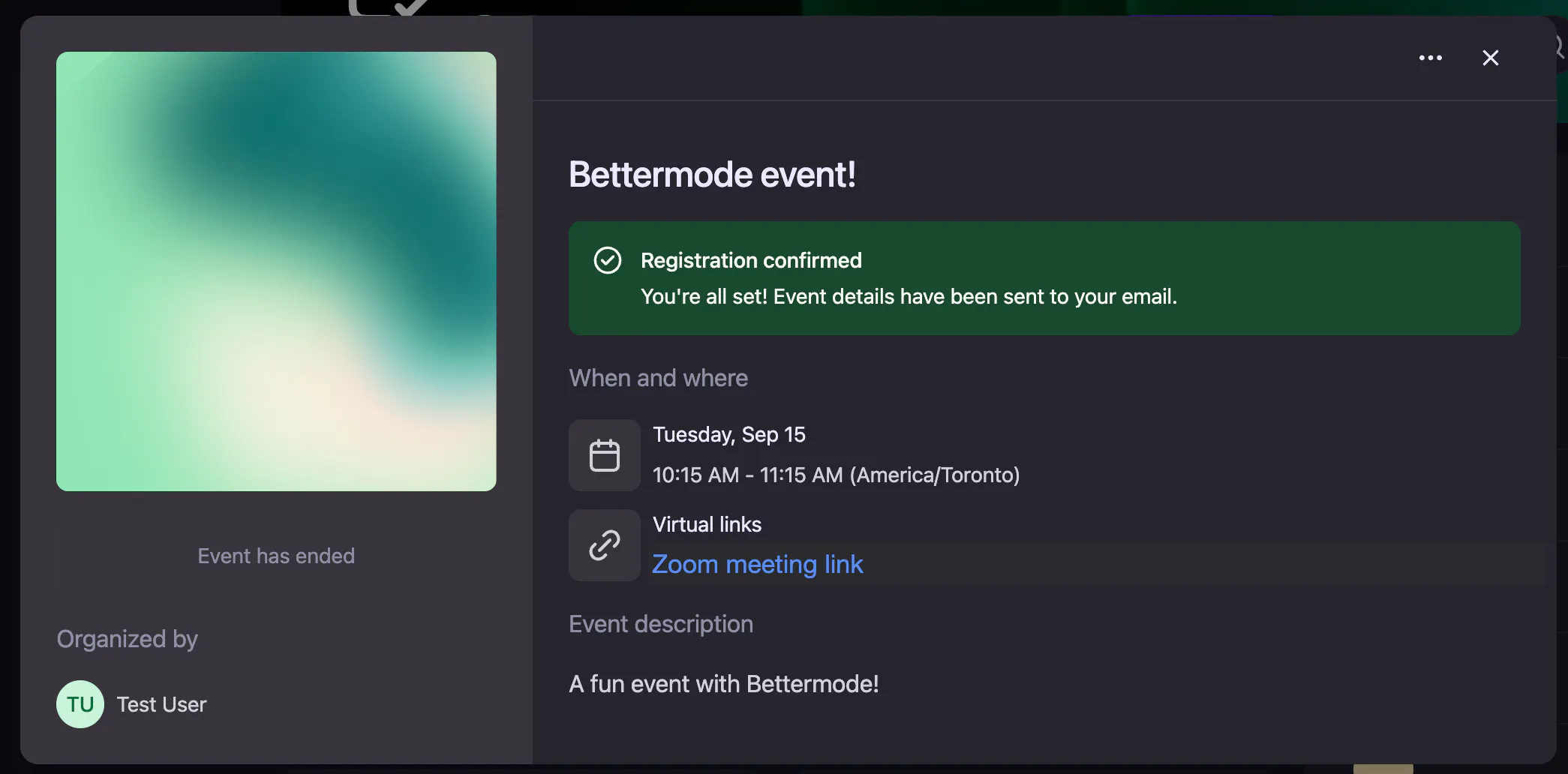
When a member RSVPs to a linked event, Bettermode Events for Zoom registers them on the Zoom session using the name and email on their Bettermode profile. Zoom then emails them a confirmation with a calendar invite and a join link that belongs to that member alone. There's no second form to fill in.
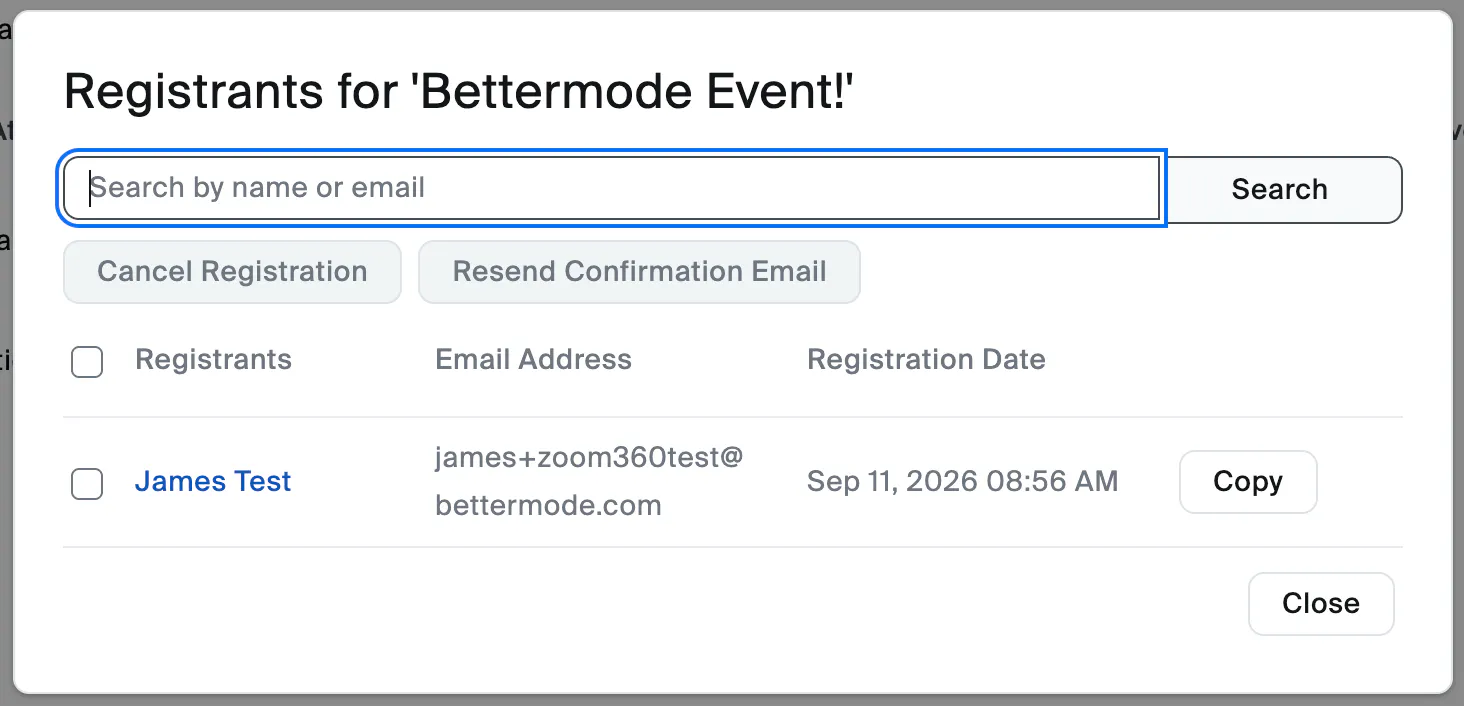
On the Zoom side, the member appears in the session's registrant list straight away.
If a member cancels their RSVP, their Zoom registration is cancelled too, so your Zoom registrant list stays in step with your community guest list.
If the session is set to manual approval in Zoom, the app approves members it registers, so nobody is left waiting without a join link.
If a registration can't be completed, for example because Zoom is briefly unavailable, it's retried automatically. The settings page shows any registrations still being retried.
