Use Outseta SSO to give your Bettermode members a seamless login experience with their Outseta credentials. Instead of signing up or logging in with a Bettermode account, your users will authenticate using Outseta credentials on your login page.
Required credentials to set up Outseta SSO
You'll need the following information from your Outseta account:
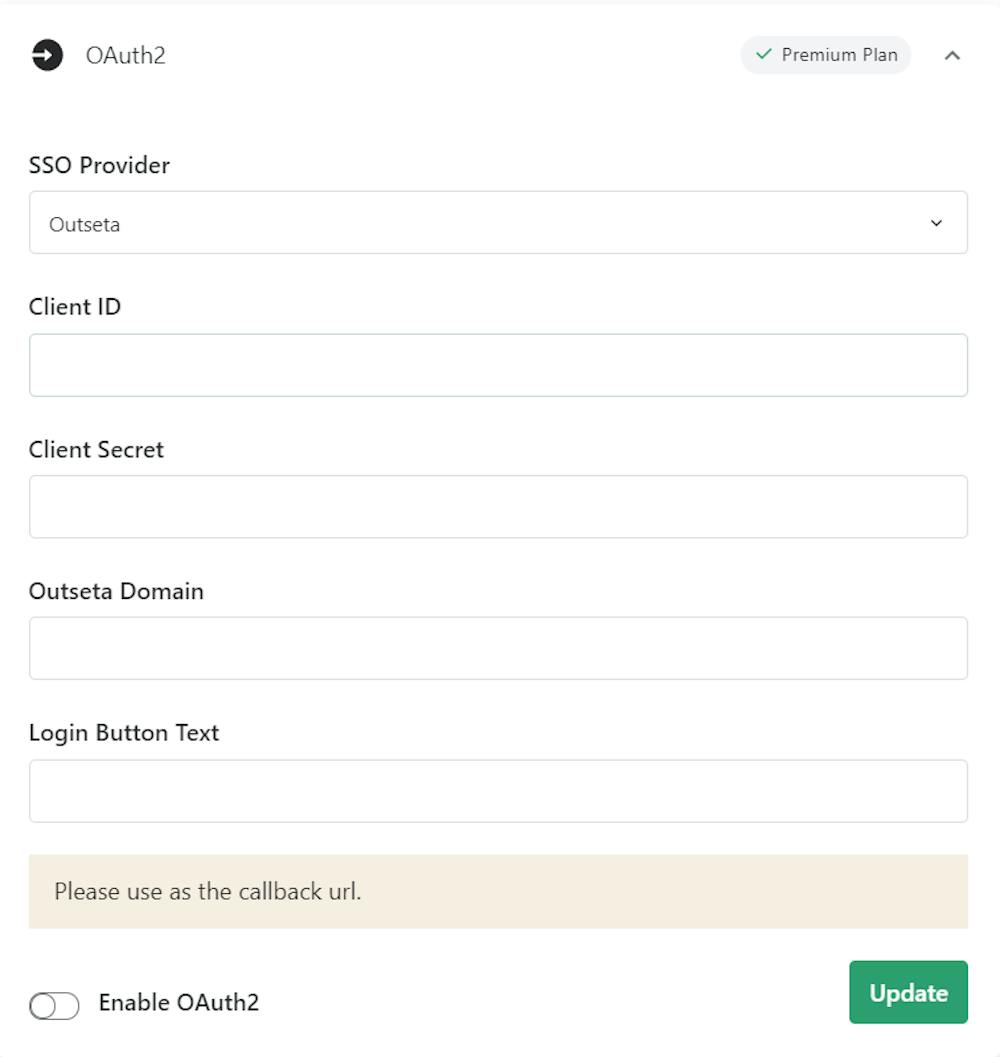
Client ID (required): An alphanumeric string that identifies your application. It's used to build authorization URLs presented to users.
Client Secret (required): A secret known only to your application and authorization server. It protects resources by granting tokens only to authorized requestors.
Outseta Domain (required): The domain URL of your SSO provider (for example, https://[your-subdomain].outseta.com/).
Login Button Text (required): The text that appears on your login page (for example, "Login with SSO").
Callback URL (required): The URL where users are redirected after authentication completes.
Find your Outseta credentials
Follow these steps to locate your Outseta Domain, Client ID, and Client Secret:
Visit your Outseta Membership website at https://[your-subdomain].outseta.com/.
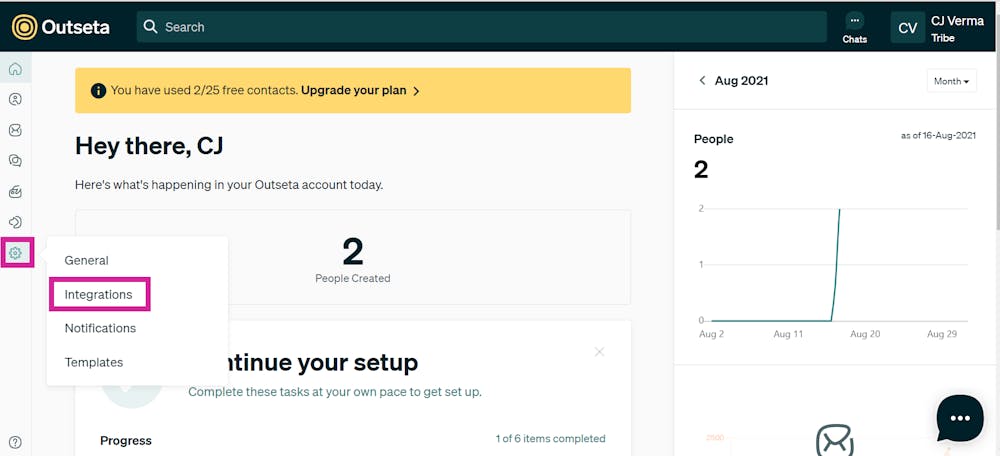
Click Settings > Integration and wait for the page to load.
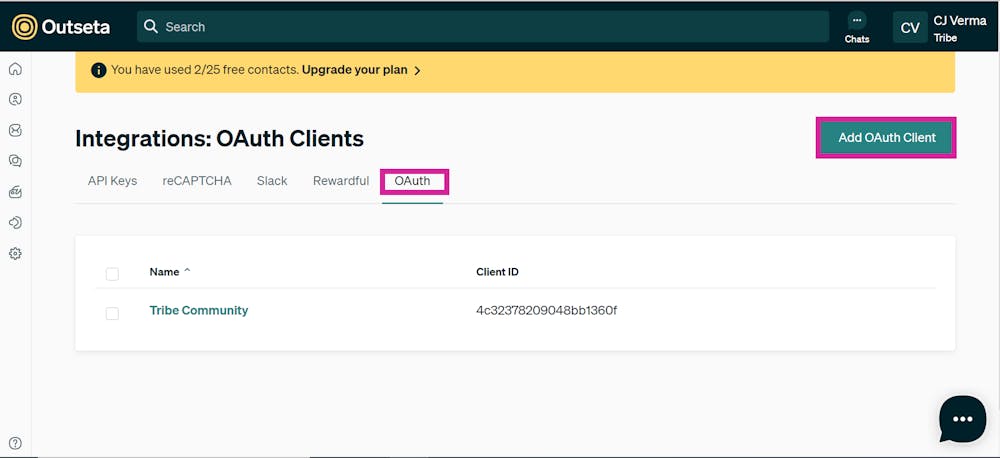
Click OAuth, then click Add OAuth Client.
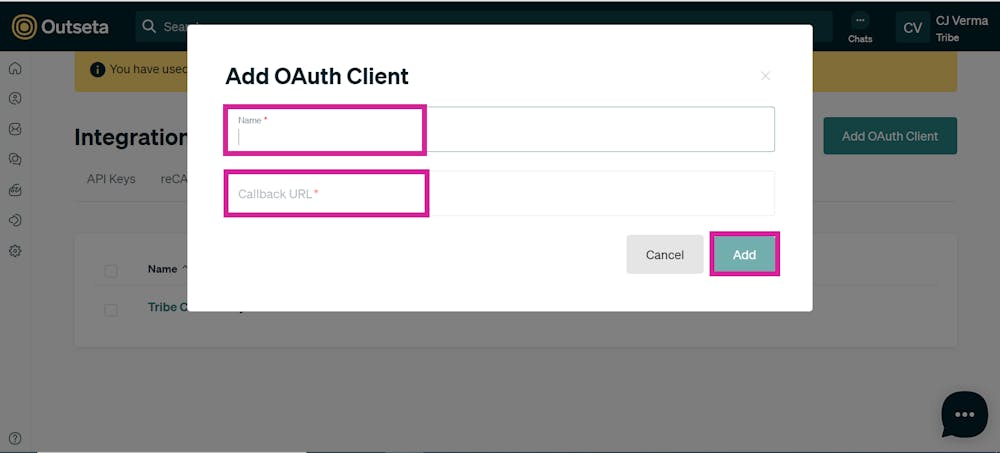
Enter a client name (for example, "Bettermode") and your Callback URL. The Callback URL is your site address with /ssos/redirect appended.
Example:
Your site URL: https://community4.blogha.com
Your Callback URL: https://community4.blogha.com/ssos/redirect
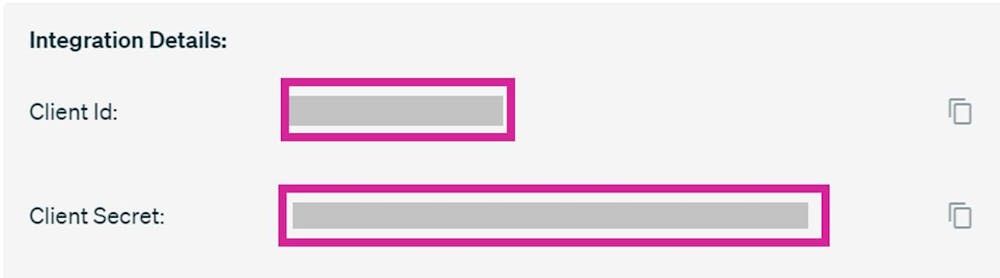
Click Add. Your Client ID, Client Secret, and Outseta Domain URL are now available.
In your Outseta Domain URL section, enter your Outseta Domain address (for example, https://[your-subdomain].outseta.com/).
Go to Auth > Sign Up and Login > Send sign up confirmation email. Add your site URL with /auth/login appended (for example, https://[your-site-url]/auth/login).
Set up OAuth2 SSO using Outseta
Now that you have your Outseta credentials, follow these steps to enable Outseta SSO in Bettermode:
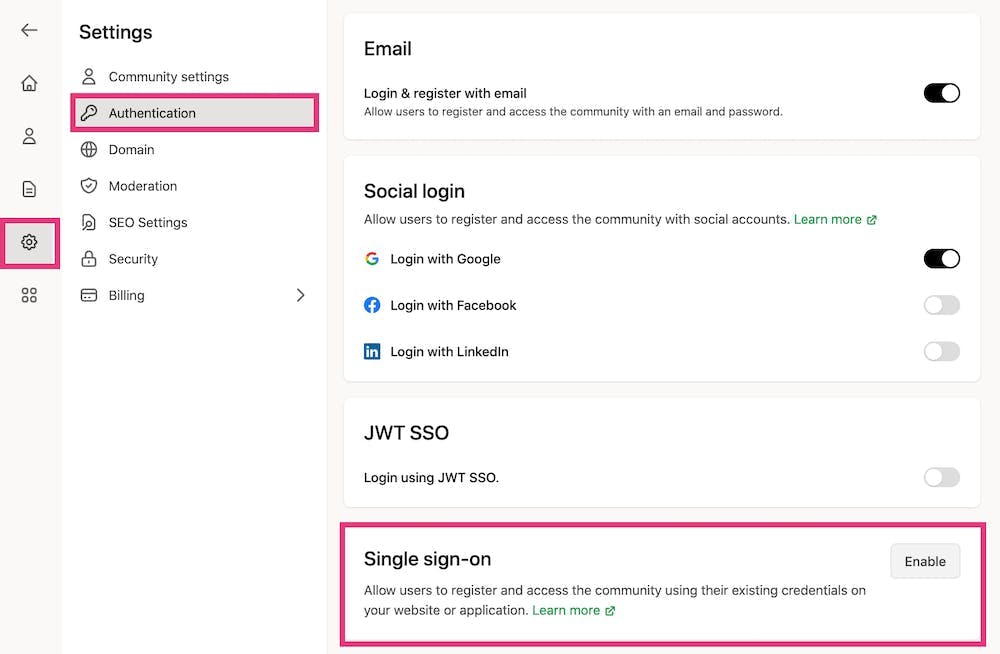
Log into your Bettermode site with your admin account. Click your profile picture (top-right) > Administration > Settings > Authentication.
Click Enable Single sign-on.
Select Outseta as your SSO Provider. Fill in all required fields with the credentials you gathered earlier.
Note: All fields are mandatory.
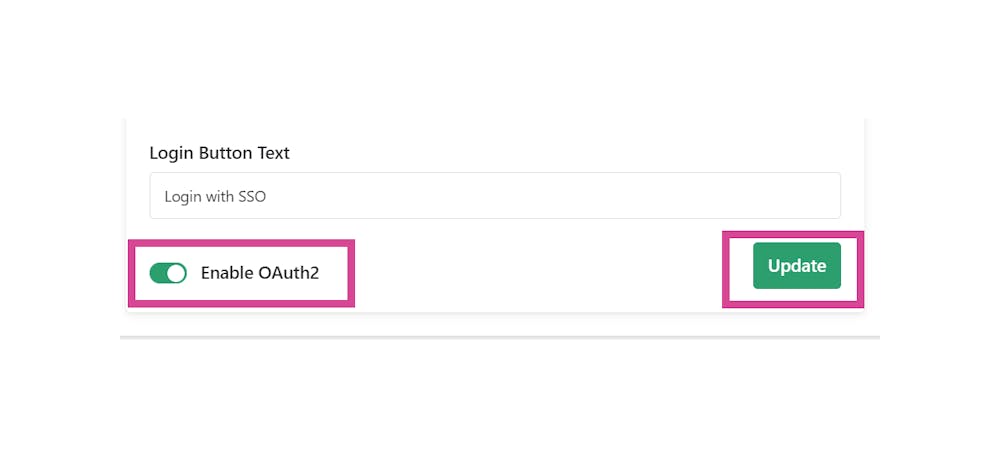
Turn on the Enable OAuth2 toggle and click Update.
Visit your site URL (for example, https://community1.blogha.com) and click the login button. Authenticate using your Outseta credentials.
Congratulations! Your OAuth2 SSO is now active.
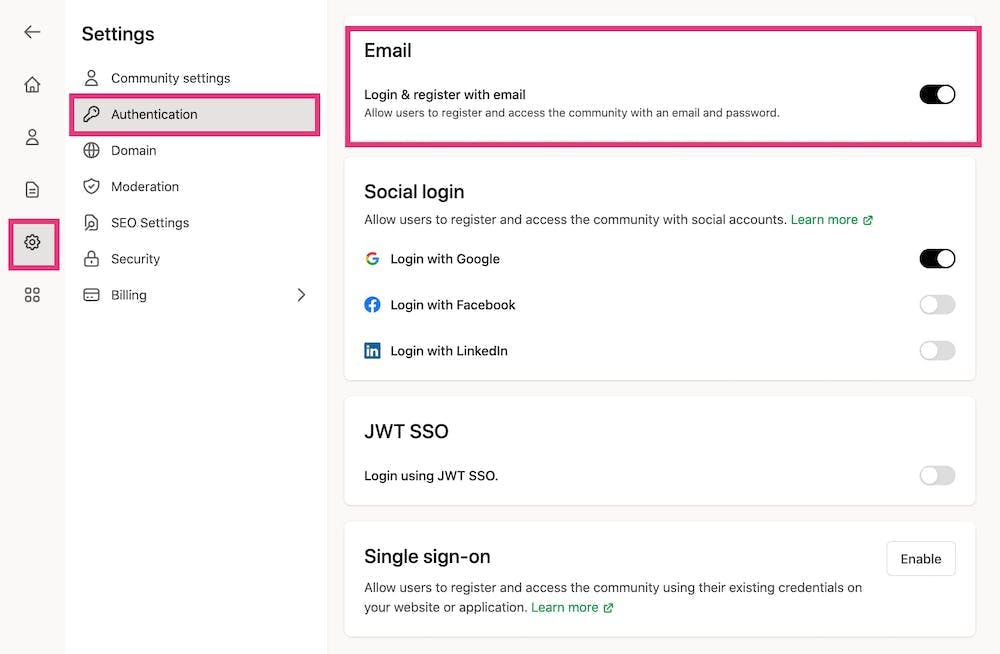
Optional: Disable email login
If you want members to use only Outseta SSO and skip the email login option, disable email authentication: