


With Easy Events, creating an event is just as simple as publishing a post — but with powerful, event-specific enhancements. You can set the date and time, define organizers, add locations or virtual meeting links, configure recurring schedules, and enable RSVP and calendar sync — all from a guided composer flow.
This article walks you through how to create an event post using the Easy Events space.
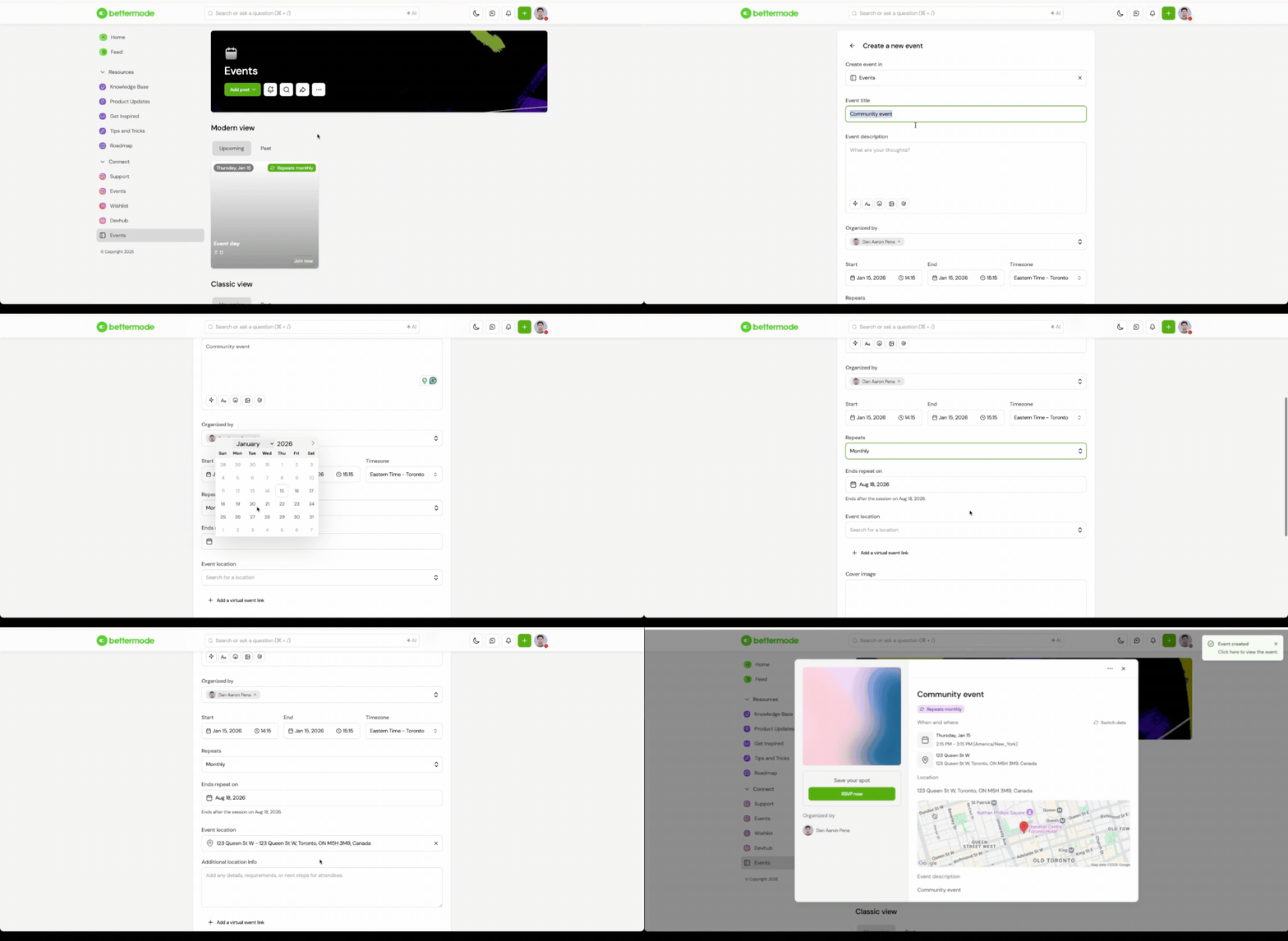
How to Create an Event Post:
Go to your Easy Events space.
Click + Add Post to open the event composer.
Add your event title and description — this will appear at the top of the event post.
Set the organizers:
The post creator is added by default
You can add multiple organizers for visibility and shared management
Define the start and end time:
Supports time zones for global events
Configure the recurrence (optional):
Choose daily, weekly, monthly, or yearly
Select specific weekdays for repeated events
Set a custom end date for the series
Add a location:
For in-person events, enter the full address to display a map
For virtual events, paste a meeting link (Zoom, Google Meet, YouTube, Teams, etc.)
Platform icons will update automatically based on the link
Include any attendee instructions (e.g., “Report to front desk” or “Bring a notepad”)
Upload a cover image (optional) using Unsplash or your own files
Set an RSVP capacity limit if needed
Review the default notification settings (sent to members when):
They register for the event
The event is updated or canceled
A reminder is sent before the event begins
Click Publish to post the event
Key Features:
Guided composer built for events
Support for single or recurring events
Organizer tagging and time zone support
Location detection with smart icons and embedded maps
RSVP capacity control and notification automation
Calendar sync support after RSVP
Benefits:
Create and launch events faster with less setup
Offer a consistent and polished event experience for your members
Make events more discoverable with embedded metadata
Drive higher attendance with built-in reminders and calendar links
Reduce manual tasks with automated notifications and smart formatting
Practical Use Cases / Best Practices:
Use the description field to add an agenda, speaker bios, or pre-event resources
Set a recurring schedule for weekly office hours or onboarding calls
Upload a visually engaging cover image to increase visibility
Keep the title format consistent (e.g., “Workshop: [Topic]” or “AMA with [Name]”)
Use RSVP caps for exclusive or limited-seat events
FAQs / Troubleshooting:
Q: Can only members RSVP? How about visitors with no membership?
A: Only logged-in members can RSVP to events. Visitors must create an account to register.
Q: Is there an option to show community members which other members have RSVP’d?
A: Not currently. RSVP lists are private and only visible to admins and organizers.
Q: Are users notified as soon as events are created or do they have to go to the Events space to see what events are coming up?
A: Yes, users receive notifications (in-app and email) when:
An event is created
An event is updated
An event is canceled
They RSVP to an event
Related Articles:
