


RSVPing to events in Bettermode is fast, flexible, and fully integrated into the community experience. Members can register with a single click, receive confirmation and reminder emails, and sync the event to their personal calendars. For recurring events, they also have the option to switch their RSVP to a different date — no need to cancel and start over.
This article explains how members RSVP, change dates, and manage their attendance for Easy Events.
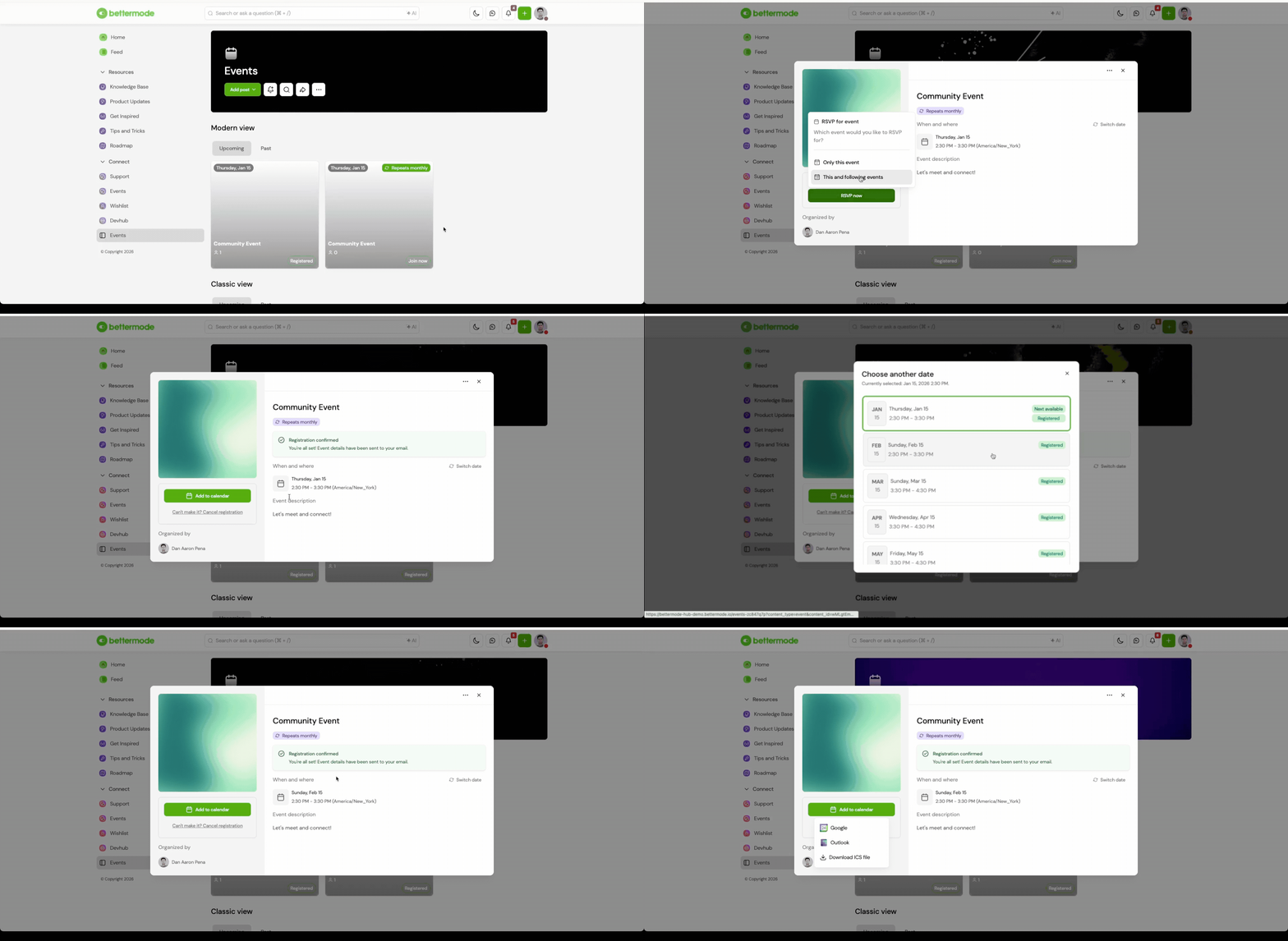
How to RSVP to an Event:
Open the event post you’re interested in (via the Events space or an embedded post).
Click RSVP Now.
If the event is part of a recurring series, select one of the following:
This event only (to RSVP to a single date)
This and all future events (to RSVP to all upcoming occurrences)
A confirmation message will appear, and a confirmation email will be sent to the member.
How to Switch to a Different Date (Recurring Events Only):
Return to the event you originally RSVP’d to.
Click Switch date.
Select the new date you’d like to attend.
Confirm your selection — you’ll receive a new confirmation email for the updated RSVP.
How to Cancel an RSVP:
Go to the event post where you previously registered.
Click Cancel RSVP.
Choose whether to cancel:
Just the current occurrence
All upcoming RSVPs (if you had registered for the full series)
Members can RSVP again at any time as long as the event hasn’t reached its capacity.
How to Add the Event to Your Calendar:
After RSVPing, click the Add to Calendar button.
Choose from:
Google Calendar
Outlook Calendar
Download ICS (for Apple Calendar or other tools)
The event will be added with full details: title, date/time, location, and description.
Key Features:
One-click RSVP from the event page
Option to register for individual or all recurring dates
Easy date switching for recurring events
Calendar sync support with Google, Outlook, or ICS
Automatic confirmation and reminder emails
Benefits:
Keeps members fully in control of their attendance
Reduces no-shows with reminders and calendar links
Makes recurring events more flexible and user-friendly
Delivers a polished registration experience without leaving the community
Practical Use Cases / Best Practices:
Encourage members to RSVP early by embedding the event in announcement posts
Use calendar sync options to improve turnout
Highlight recurring sessions like onboarding or office hours in community updates
Let members switch dates instead of canceling if their schedule changes
Promote upcoming sessions with reminders for those already registered
FAQs / Troubleshooting:
Q: Can members RSVP to just one session in a recurring event?
A: Yes. When RSVPing, members can choose a single date or register for all future occurrences.
Q: Can members switch their RSVP to a different date later?
A: Yes. Members can return to the event and select Switch date to choose a different upcoming session.
Q: Will members receive email confirmations and reminders?
A: Yes. Members receive a confirmation email upon RSVP, and a reminder email before the event starts.
Q: Can members cancel their RSVP?
A: Yes. They can cancel individual or all RSVPs for recurring events directly from the event post.
Q: Will the event appear on their personal calendar?
A: Yes — once they click Add to Calendar, the event will be added with all relevant details.
Related Articles:
