


The Events Block gives you full control over how events are displayed in your community. Whether you prefer a visual card layout or a simple list view, this block is purpose-built for event content — no complex filters or manual configuration needed.
Once Easy Events is enabled, the Events Block is automatically added to your new space, making it easy for members to discover upcoming events and revisit past ones.
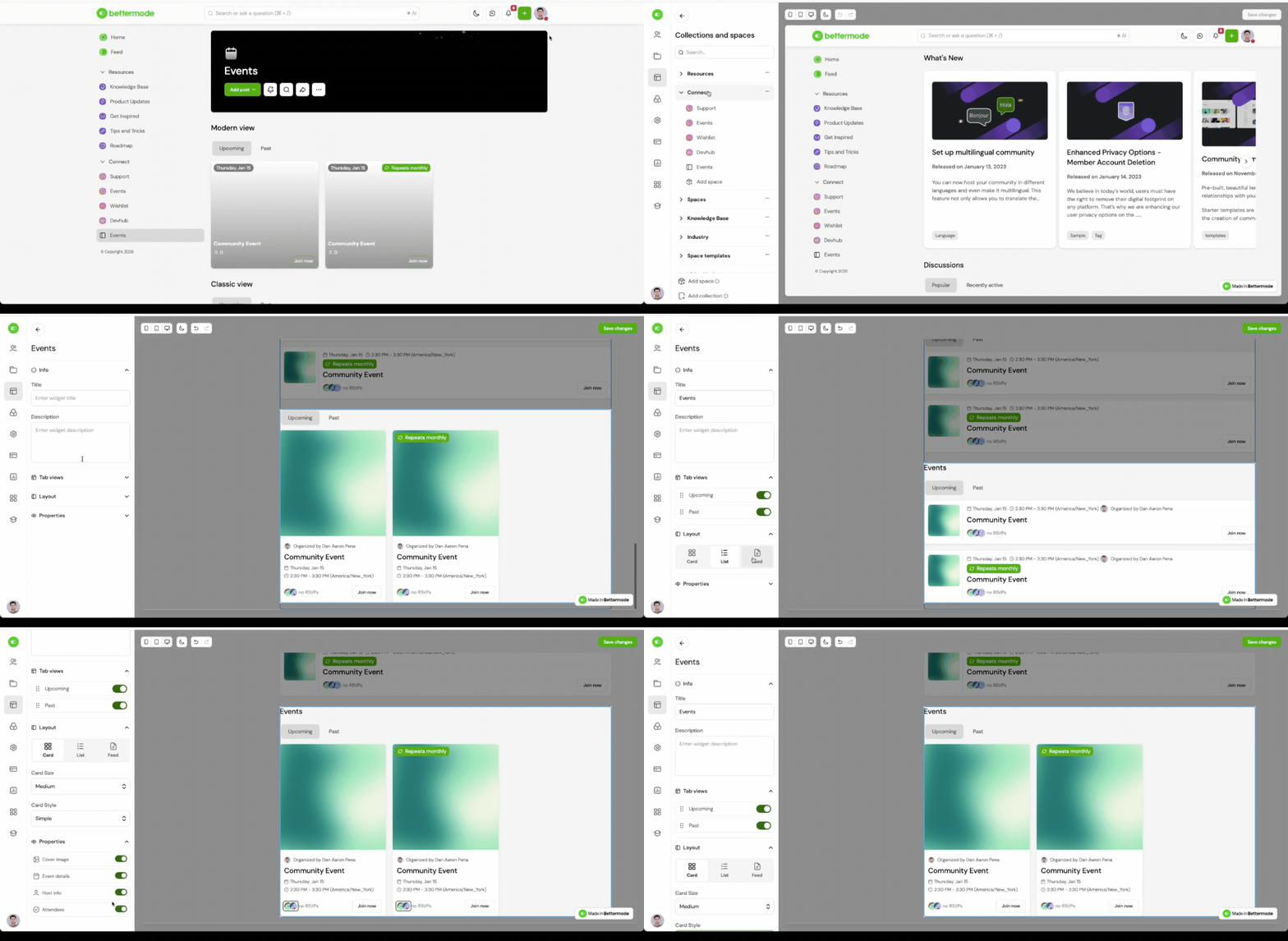
How to Customize the Events Block:
Go to Menu > Administration > Design Studio > Collections and Spaces.
Select the Collection and Space where Easy Events is enabled.
Hover over the Events Block and click the 3-dot menu > Edit block.
Choose from the available customization options:
Display Views:
Card View:
Visual layout with cover images and event metadata
Great for highlighting featured or image-rich events
List View:
Compact, text-based layout for fast scanning
Best for high-frequency or information-dense event listings
Feed View:
Stream-style layout similar to your homepage feed
Useful for communities that want events to feel like a live feed
Card Style Options:
Modern: Overlays text and metadata on the image
Simple: Classic layout with separated content
Additional Settings:
Card Size: Adjust how large each event card appears
Show Past Events: Toggle to hide or display expired events
Block Title and Description: Update how the block is labeled in the space
All changes are instantly previewable, so you can test and adjust layouts to match your community’s design.
Key Features:
Three layout views: Card, List, and Feed
Two visual styles: Modern and Simple
Card size and past event toggles
Built-in support for event-specific data (date, location, RSVP)
No filter setup required — works out of the box with the Events CMS Model
Benefits:
Showcase upcoming events in a visually engaging way
Improve discoverability with layout flexibility
Reduce setup time with a pre-configured, event-specific block
Easily match your community’s branding and layout style
Practical Use Cases / Best Practices:
Use Card View + Modern style to highlight featured events with cover images
Switch to List View if you host frequent webinars or internal sessions
Hide past events to keep the space focused on what’s next
Add a custom block title (e.g., “Upcoming Events” or “Join Us Live”) for clarity
FAQs / Troubleshooting:
Q: Can I use the Events Block in other spaces?
A: The Events Block is specific to the Easy Events template. In other spaces, you can use a standard Posts Block filtered by CMS model, but it won't include RSVP or event-specific layout options.
Q: How are events sorted in the block?
A: Events are automatically sorted by start date, with the next upcoming events shown first.
Q: Can I display both past and upcoming events?
A: Yes — there’s a toggle in the block settings to show or hide past events.
Q: Will the layout change how RSVPs work?
A: No — layout settings only affect how events are displayed. RSVP functionality works the same in all views.
Related Articles:
