


To integrate your Bettermode site with Salesforce 360, you need the following items:
Admin access to Salesforce is required.
Admin access to Bettermode is also required.
The Salesforce 360 app enabled for your community. Contact the Bettermode team if you don't see it on your App store → Apps & Integrations page.
You need to add a callback URL in Salesforce (provided below).
Consumer Key & Secret from your Salesforce External Client App.
💡 We highly recommend connecting to a Salesforce sandbox first to validate the integration before connecting your production org. The connect form lets you choose the environment.
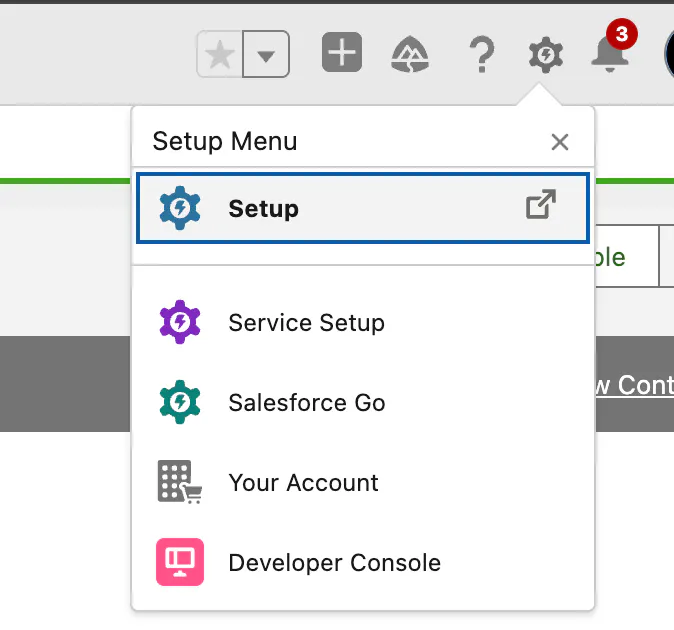
Log in to your Salesforce org and click the gear icon in the upper-right corner, then select Setup.
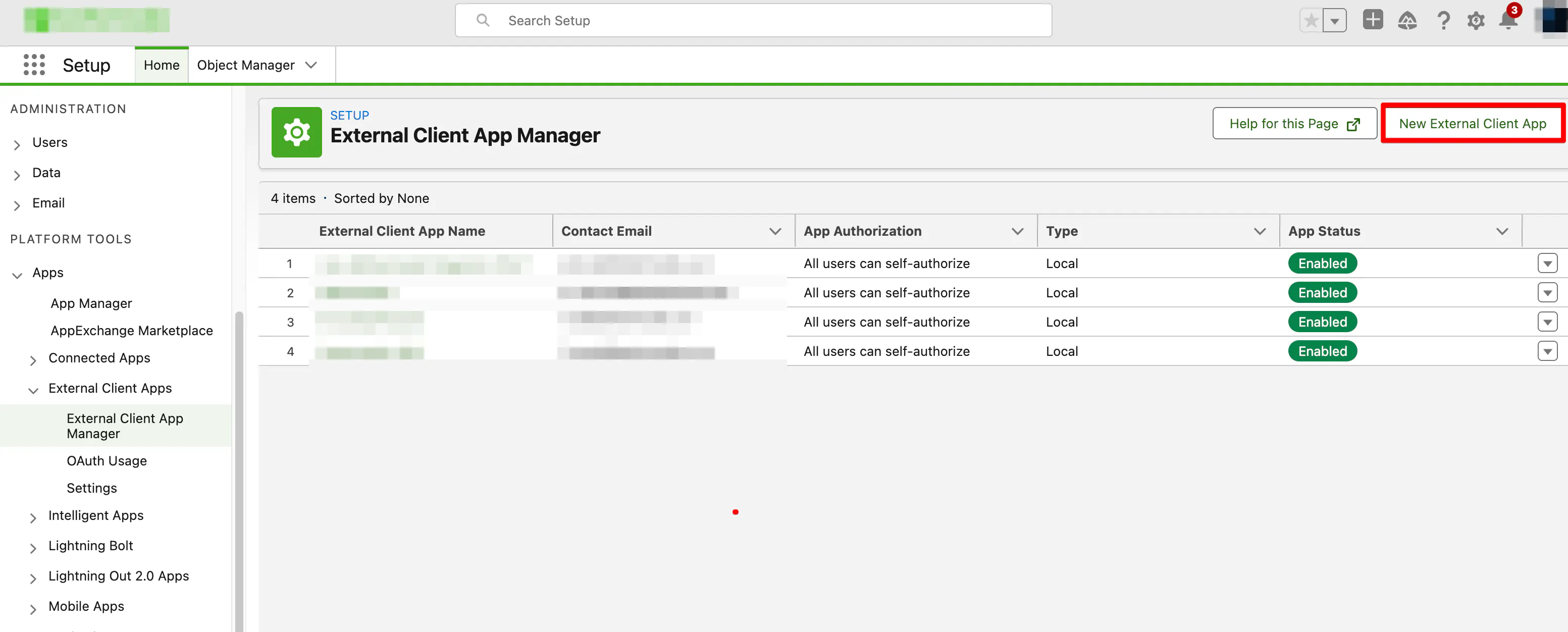
In Setup, search for "Platform Tools" on the left side and click External Client App Manager under Apps, then click New External Client App on the top-right.
Add an app name (e.g., Bettermode Salesforce 360) and press tab so the API name fills automatically.
Add your email.
Tick the box next to API (Enable OAuth Settings) and insert the Callback URL and scopes.
Callback URL: https://salesforce360.bettermode.app/salesforce/callback Add OAuth Scopes:
Manage user data via APIs (api)
Perform requests at any time (refresh_token, offline_access)
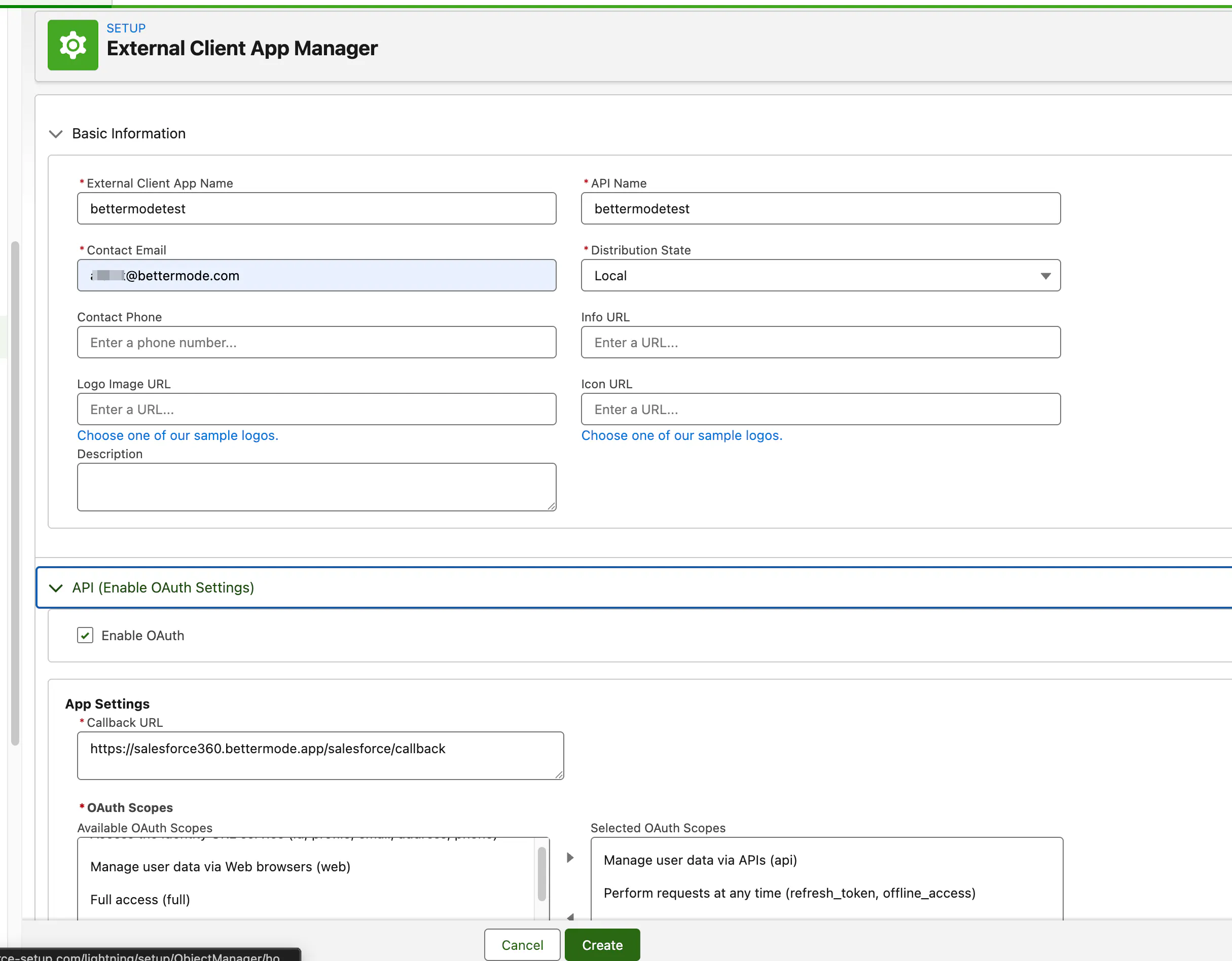
Click Create and wait up to 5 minutes for Salesforce to finish provisioning the app.
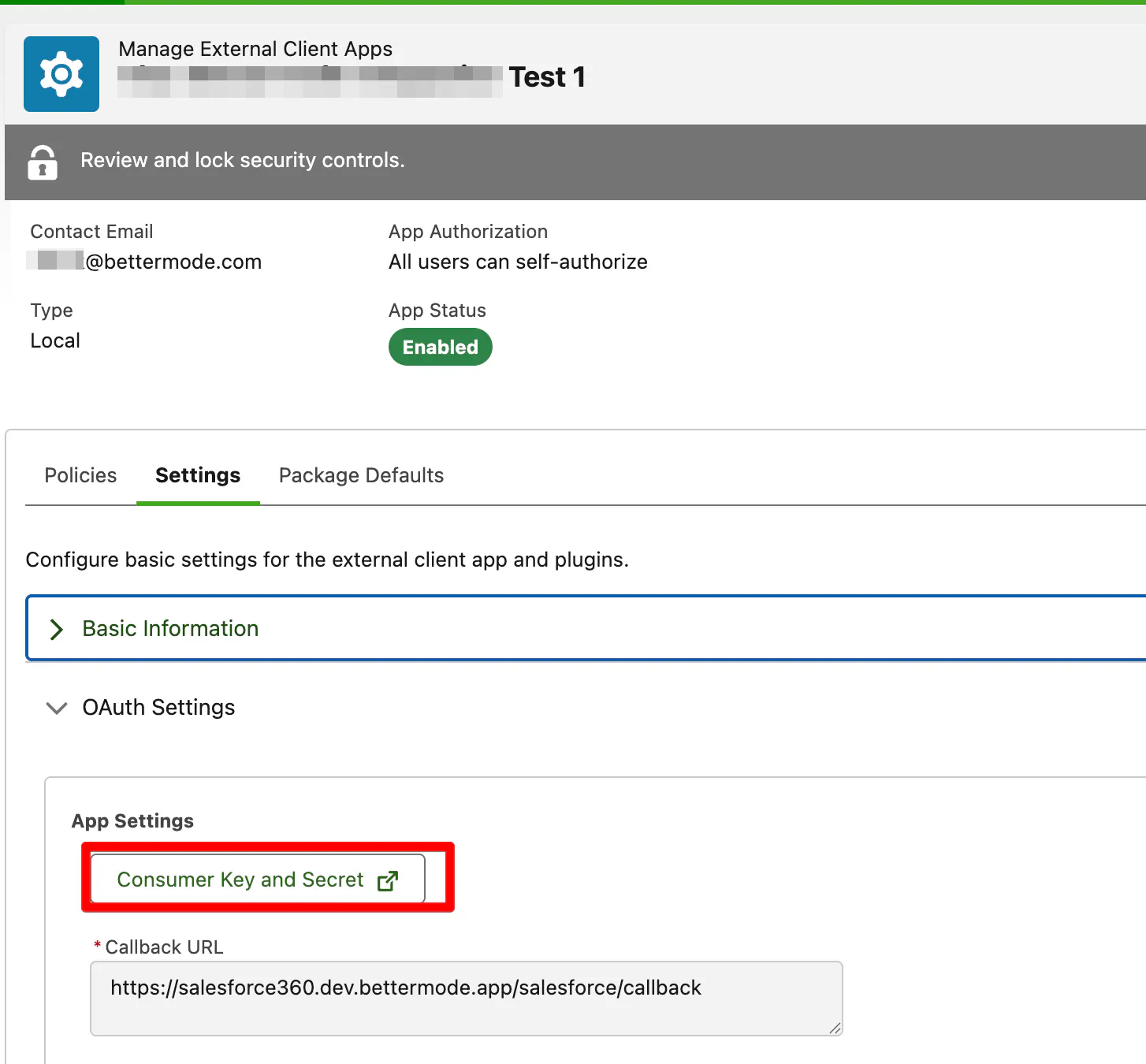
Open your app in External Client App Manager and click Settings → OAuth Settings → Consumer Key and Secret (you may need to complete 2-factor authentication). Copy the Consumer Key and Consumer Secret. You'll need both in Part 2.
Log in to your Bettermode account, go to Administration view and navigate to the App store section.
Go to Apps & Integrations page
Click on Salesforce 360 and click Install.
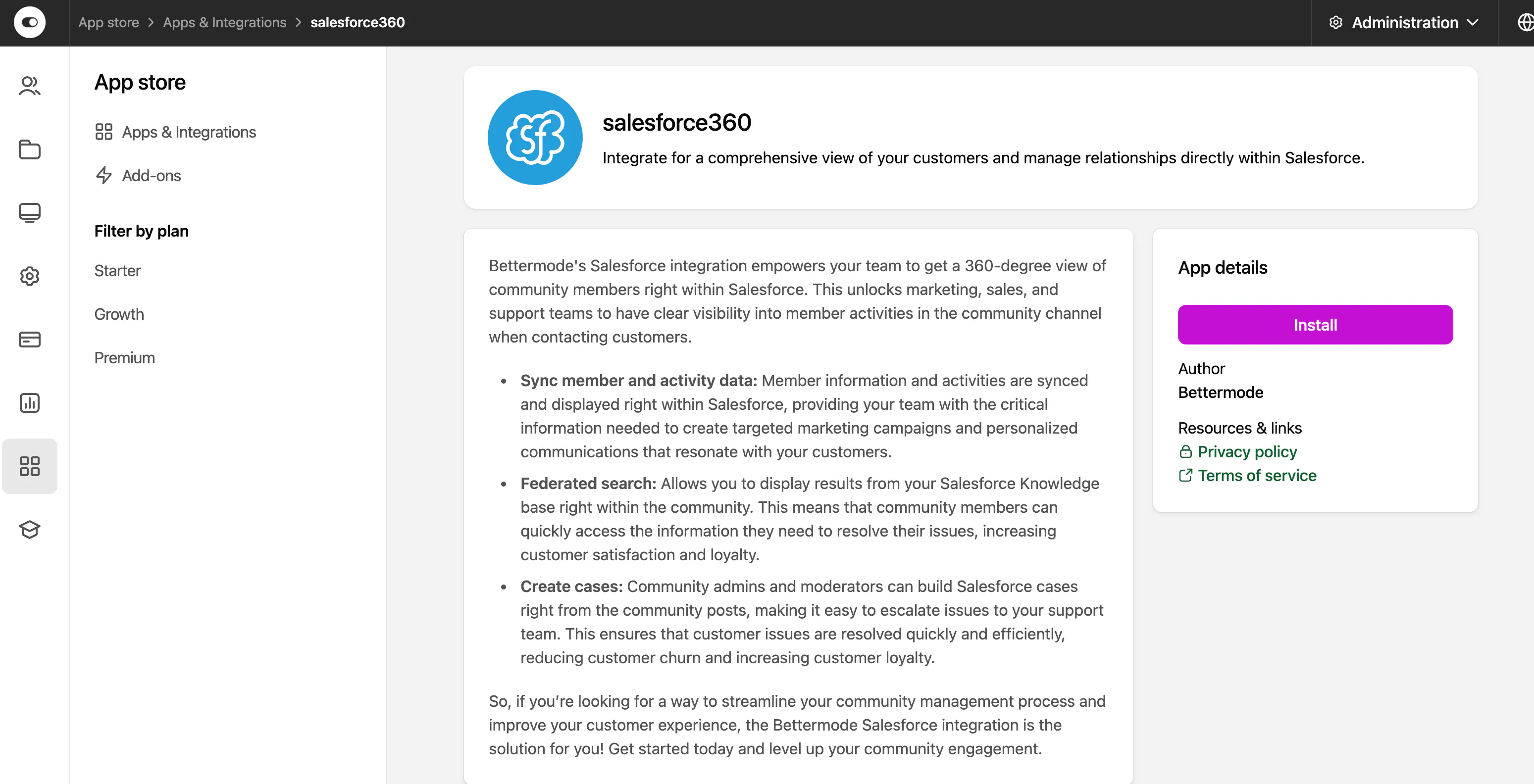
In the app's settings, fill in the connection form:
Environment: choose Production or Sandbox (Sandbox uses test.salesforce.com)
Salesforce Consumer Key (Client ID): from Part 1
Salesforce Consumer Secret: from Part 1 (stored encrypted and only used to connect to your Salesforce org)
The Connect button stays disabled until both credentials are entered.
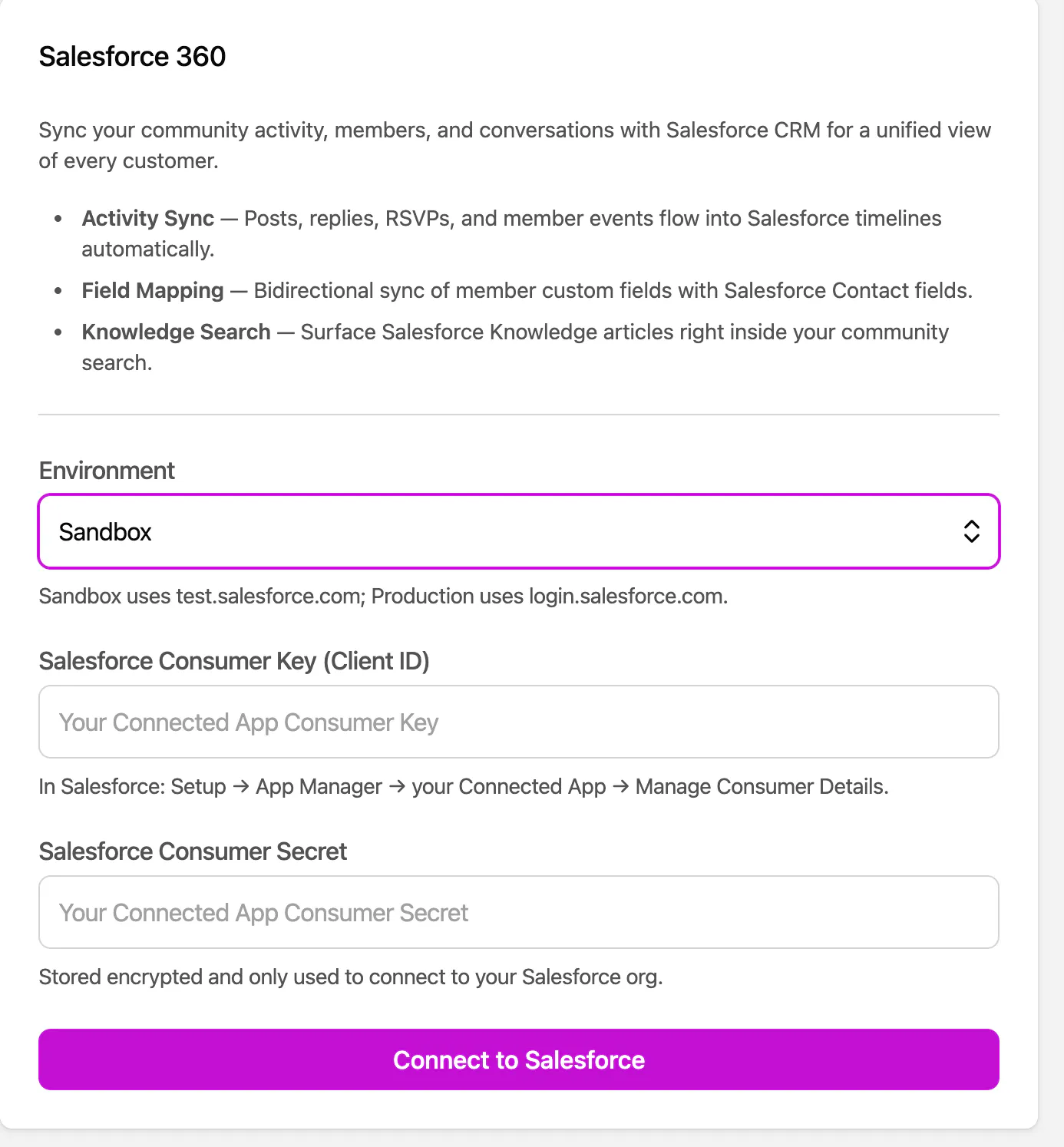
Click Connect. You'll be redirected to Salesforce. Log in and complete 2-factor authentication if enabled, then review the requested permissions and click Allow.
💡 When logging in to a sandbox, remember that your sandbox username includes a suffix after your email (e.g., [email protected]).
5. After authorizing, you'll be redirected back to the Salesforce 360 settings page, where you can choose which spaces sync to Salesforce and configure field mappings.
💡 No profile fields are synced until you explicitly map them. Each field mapping is one-directional: you choose per field whether it syncs Bettermode → Salesforce or Salesforce → Bettermode.
The integration between Salesforce 360 and Bettermode is now set up. Salesforce 360 will provision three custom objects in your org (Bettermode Community Members, Bettermode Community Posts, and Bettermode Community Activities), along with a read-only permission set (Bettermode Salesforce 360 User) and default list views.
Bettermode
Salesforce object
Default list view
Community members
Bettermode Community Member
All Bettermode Members
Community posts
Bettermode Community Post
All Bettermode Posts
Community activity (joins, posts, replies, RSVPs, event attendance)
Bettermode Community Activity
All Bettermode Activities
💡 Salesforce's "Recently Viewed" list view can appear empty even when records exist. Switch the list view to "All Bettermode …" to see synced data.
To surface this data on Account and Contact pages and grant access to your team, your Salesforce admin needs to assign the permission set and add the related lists to page layouts.
Related
