


Intercom is a communication and engagement platform that enables customer support, lead capture, email campaigns, behaviorally triggered messaging, and in-app notifications. Use Bettermode's Intercom App to increase engagement, send targeted messaging, and help users search your knowledge base.
Availability: The Intercom App is available to Growth and Premium plan customers only. View Bettermode pricing or contact the sales team for more information.
Add site members as Intercom contacts with custom properties
Update Intercom contact details with site-related custom properties
Send member events to Intercom for user segmentation based on site activities
Display knowledge base search results within Intercom inside your site
Send outbound emails or in-app notifications to different user segments
Add the Intercom Messenger to your site for direct admin-to-member communication
Create a custom product tour for site members
Install the Intercom app. Follow the steps in How to install and uninstall apps on Bettermode.
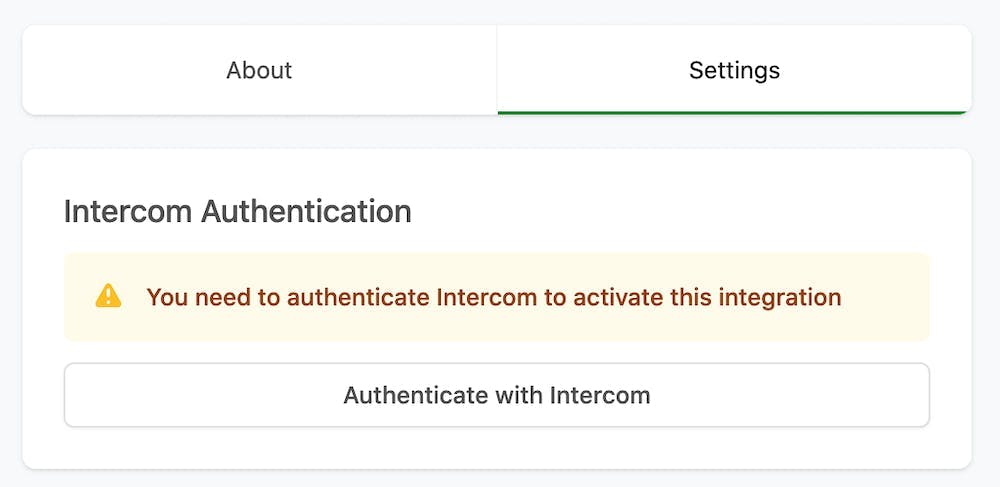
Authenticate with Intercom. In the app settings tab, click Authenticate with Intercom. This redirects you to app.intercom.com.
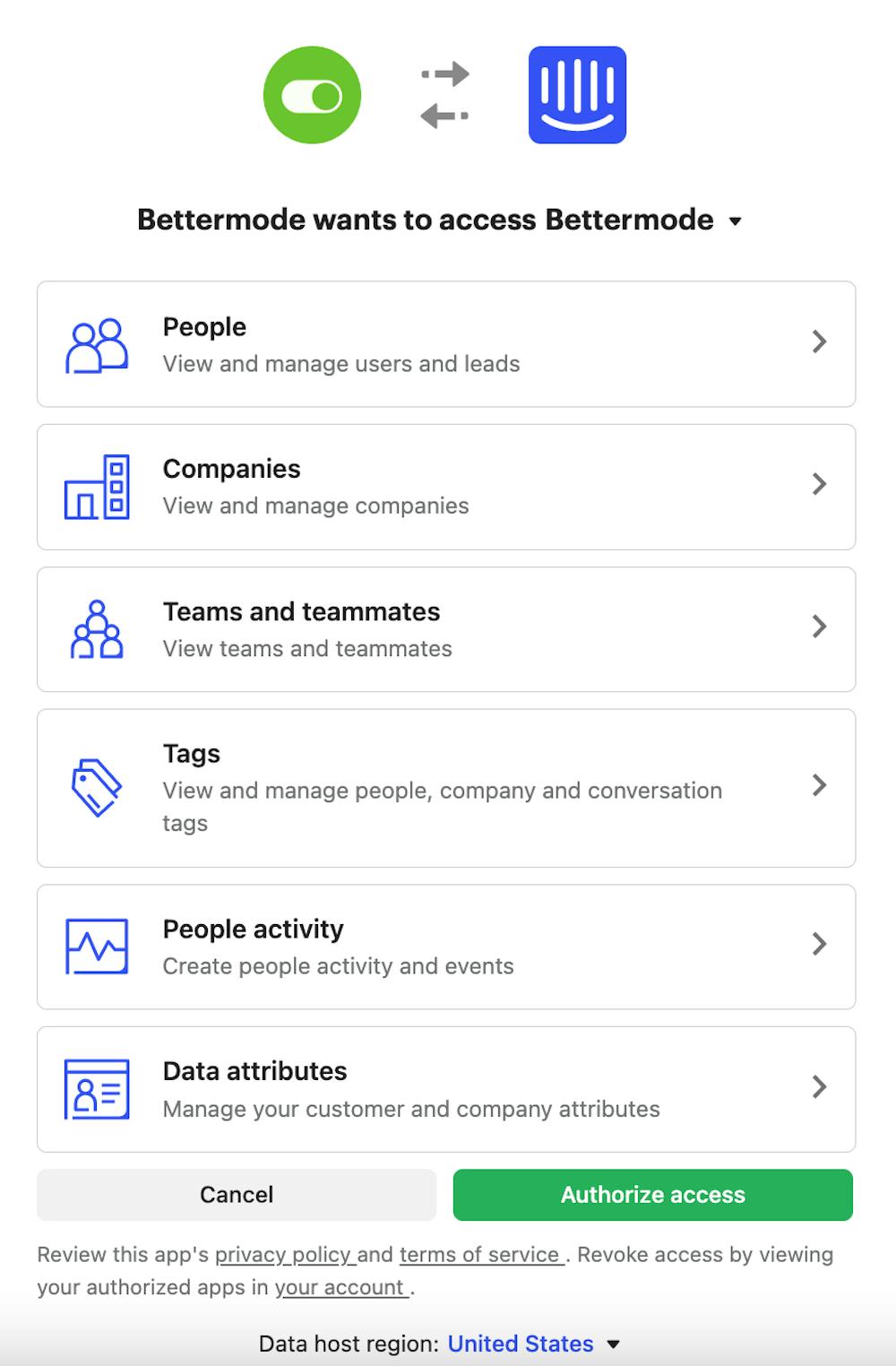
Select your Intercom workspace. From the top right of the Intercom website, choose the workspace you want to connect to your site.
Authorize access. Click Authorize Access in the bottom right of the Intercom authorization screen.
Configure app settings. After authorization, you are redirected to the Intercom App settings page. Enter your Identity verification secret and enable any of the following options (all optional):
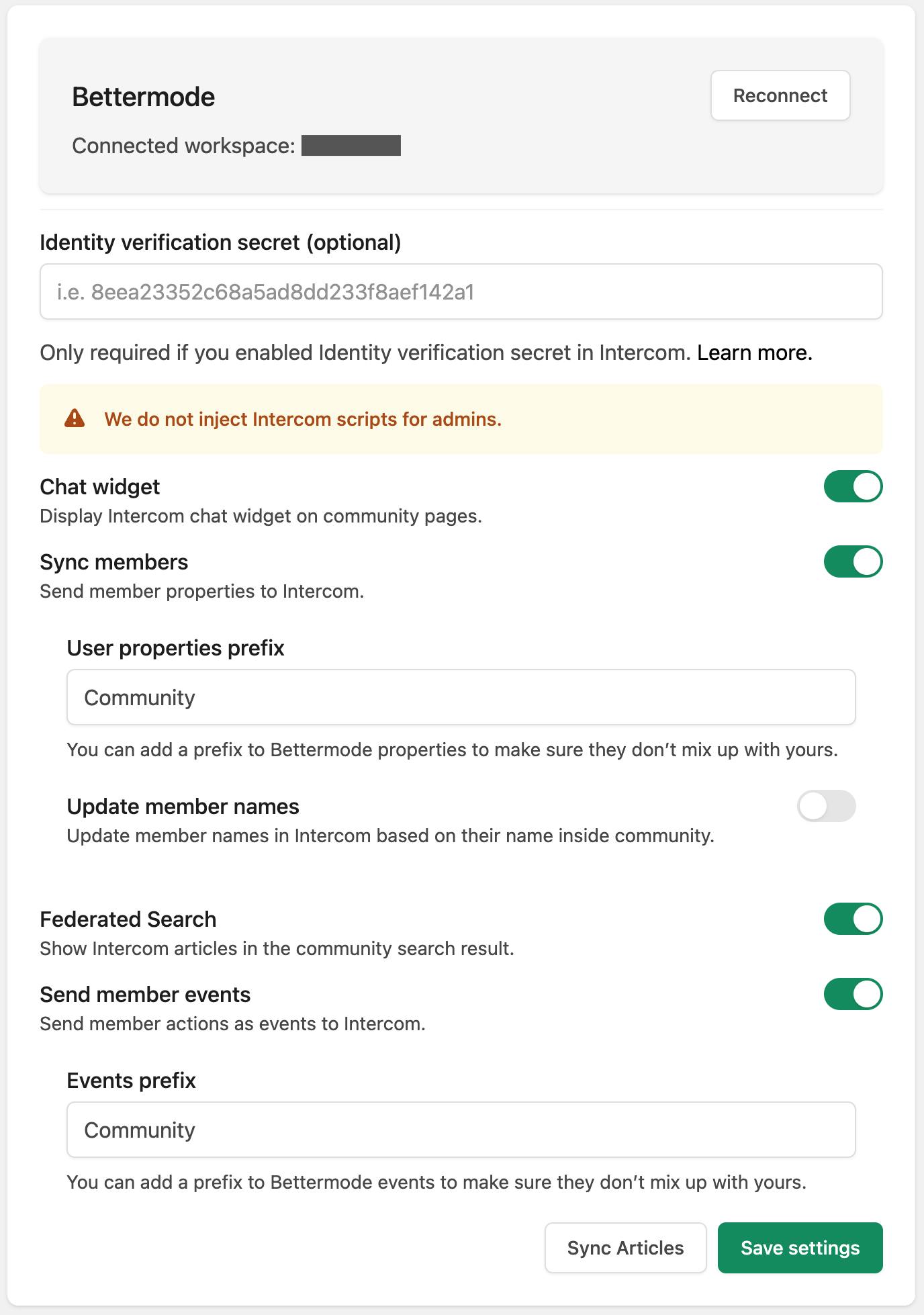
Chat Widget: Displays a chat button in the bottom-right corner of your site.
Note for admins: When you enable the Chat Widget, your own Intercom messenger temporarily replaces Bettermode's chat support messenger. You retain access to Bettermode support—when you close your Intercom messenger, the Bettermode chat button reappears on the page, allowing you to reach site members.
Sync Members: Sends user profile updates from your site to Intercom. See the tutorial link in settings for details.
Federated Search: Displays knowledge base search results in Intercom within your site's search interface.
Send Member Events: Sends user site activity to Intercom as event data. See the tutorial link in settings for details.
Save your settings. Click Save Settings.
All member properties sync to Intercom as new attributes without overwriting existing data. Bettermode uses member email as the identifier to sync the following properties:
Member Name
Username
Member ID
Tagline
Role
Created at
Updated at
Email Status
Locale
All standard and custom fields with existing values
The following member activities are automatically sent to Intercom:
member.created: Member account is created (regardless of email verification status)
member.verified: Member's email is verified and account becomes active
member.updated: Member information is updated by the member or admin
member.deleted: Member account is deleted by the member or admin
member_invitation.created: Member sends email invitations (one event per email address)
member_invitation.accepted: User registers using an email invitation
member_invitation.rejected: Email invitation expires
space_membership.created: Member joins a public space, is accepted into a private space, or is added to a space by an admin or moderator
space_membership.deleted: Member leaves a space or is removed by an admin or moderator
post.published: Post or reply is published and visible to members (after moderation)
post.deleted: Post or reply is deleted
post.created: Post or reply is created
reaction.added: Reaction is added to a post or reply
reaction.removed: Reaction is removed from a post or reply
For additional information and a video tutorial, see Intercom Integration in the Product Updates space.
