


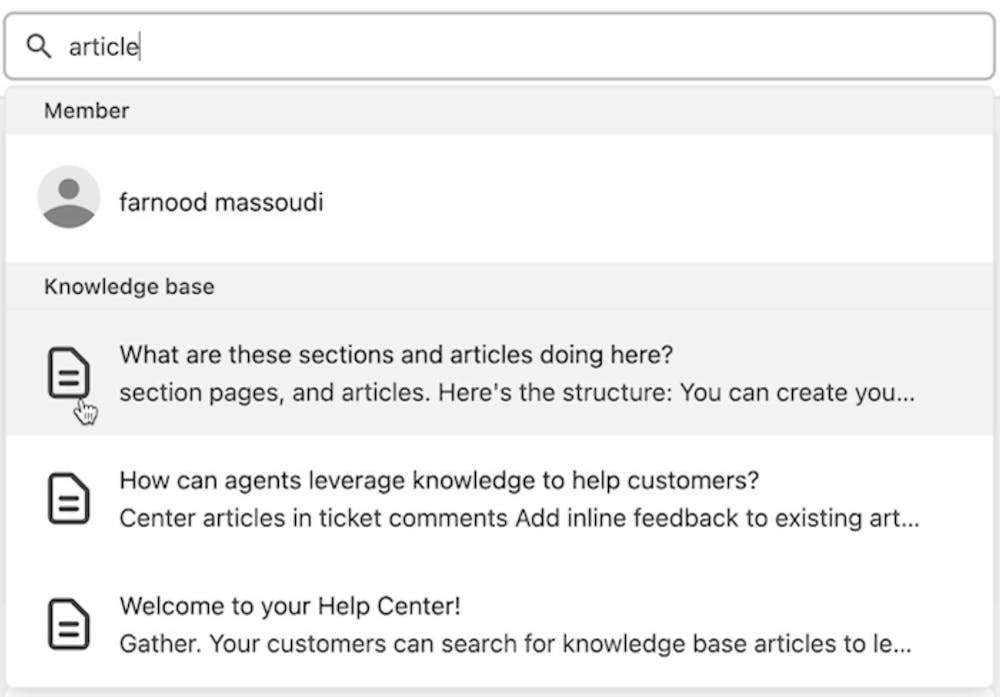
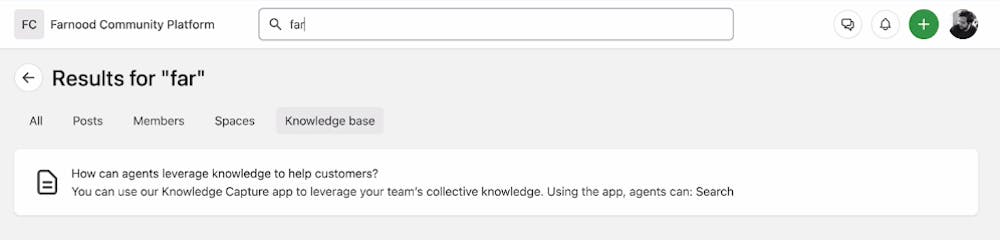
You can enable federated search to let customers access Zendesk knowledge base articles directly in your site search results. Search results from Zendesk appear in the "Knowledge base" section of your site's search interface.
Availability: The Zendesk app is available on Growth and Premium plans only. Learn more about Bettermode's pricing and plans, or contact the sales team for details.
Install the app. Learn how to install an app.
Enter your Zendesk subdomain. In the app settings tab, enter your Zendesk subdomain, click Save Subdomain, then click Authorize.
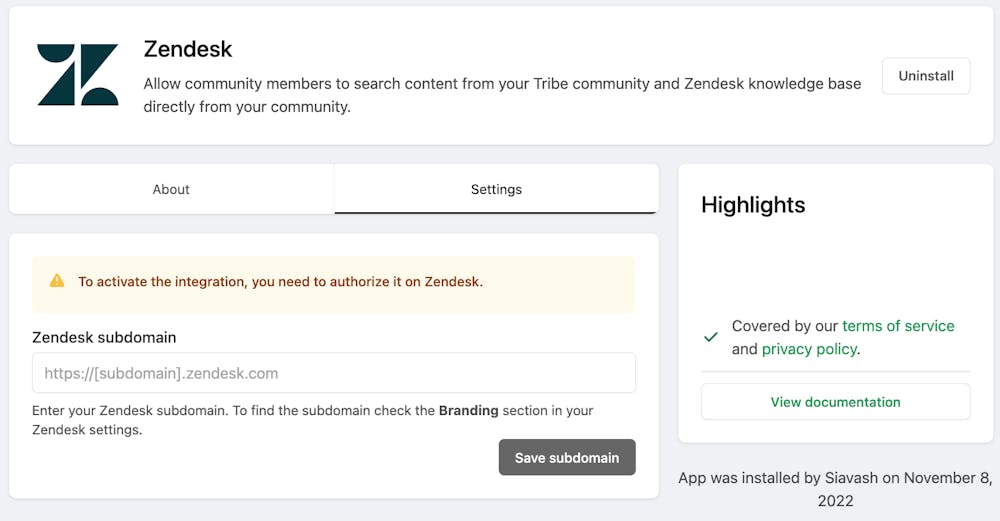
Authorize the integration. You will be directed to your Zendesk account. Click Allow to permit data synchronization between your site and your Zendesk account.
Configure federated search settings. You will return to the Zendesk app settings. Complete the following:
Federated search: Enable the toggle to allow your site search to display results from Zendesk knowledge base articles.
Brand: Select which brand(s) should appear in search results. In Zendesk, articles are organized by brand. Only articles from the selected brand(s) will sync to your site search.
Note: If you select "All", your site search will display results from all articles in your Zendesk account, regardless of their brand assignment.
Save your configuration. Click Update Settings to complete the integration.
Your site search now displays a "Knowledge base" section with results from your Zendesk account:
For a step-by-step walkthrough, see Introducing Zendesk integration in our Product Updates space.
How to integrate other apps with Bettermode using the Zapier app
How to customize or integrate your site using the Custom Code Snippet app
How to track user activities using Bettermode's Amplitude app
How to receive Slack notifications for site activities using Bettermode's Slack app
How to automate email campaigns for your site using Bettermode's Mailchimp app
